14.13.2 TDengine All-in-One Installation on Windows
This guide describes how to deploy TDengine All-in-One on a Windows server using the Apex deployment tool.
Watch TDengine Tutorial Videos: Windows Installation Video
14.13.2.1 Environment Requirements
Before deployment, ensure that the target server meets the following requirements.
Software requirements:
- Windows 10 SP3, Windows 11, or later
- Windows Server 2019 or later
Recommended configuration:
| Resource | Recommended |
|---|---|
| CPU | 12 Cores |
| Memory | 16 GB RAM |
| Storage | 500 GB Available Disk Space |
Open PowerShell as Administrator before starting the deployment.
14.13.2.2 Deploy TDengine All-in-One
Download the Installer
Download TDengineSetup-x64.exe and double-click to start the deployment.
Run the Installer
Locate TDengineSetup-x64.exe, right-click the file, and select Run as administrator.
If prompted by Windows User Account Control (UAC), click Yes.
Select the Deployment Type
When the installer appears, click Continue and select All In One (Local).
Start the Deployment
When the PowerShell deployment prompt appears, press Enter to continue the installation.
Wait for the deployment process to complete. Do not close the PowerShell window while the installation is running.
14.13.2.3 Troubleshooting
If the deployment was not successful, verify that:
- The package was run as Administrator.
- The server has internet access to download the installation packages.
- The required ports are available and not blocked by Windows Firewall.
Note: If you encounter an issue related to the log files, stop IDMP and delete the following directory:
C:\TDengine\idmp\log
Then rerun the deployment command above.
14.13.2.4 Access and Activate IDMP
After the deployment completes successfully, open the following application:
IDMP
Used to manage your industrial data, create asset models, build dashboards, configure analyses, set up notifications, and manage data integration.
URL:
http://localhost:6042
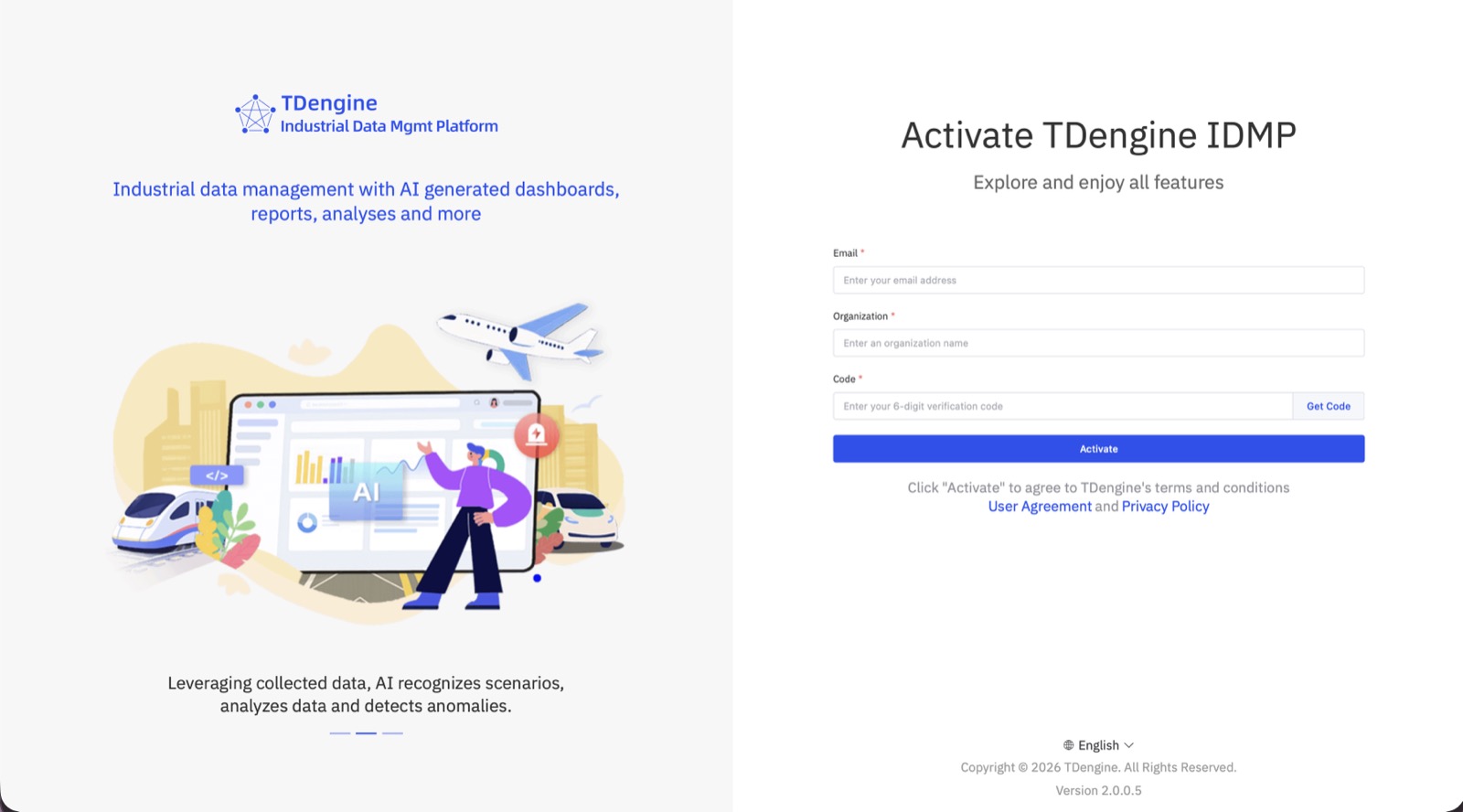
Activate your License Free Forever!
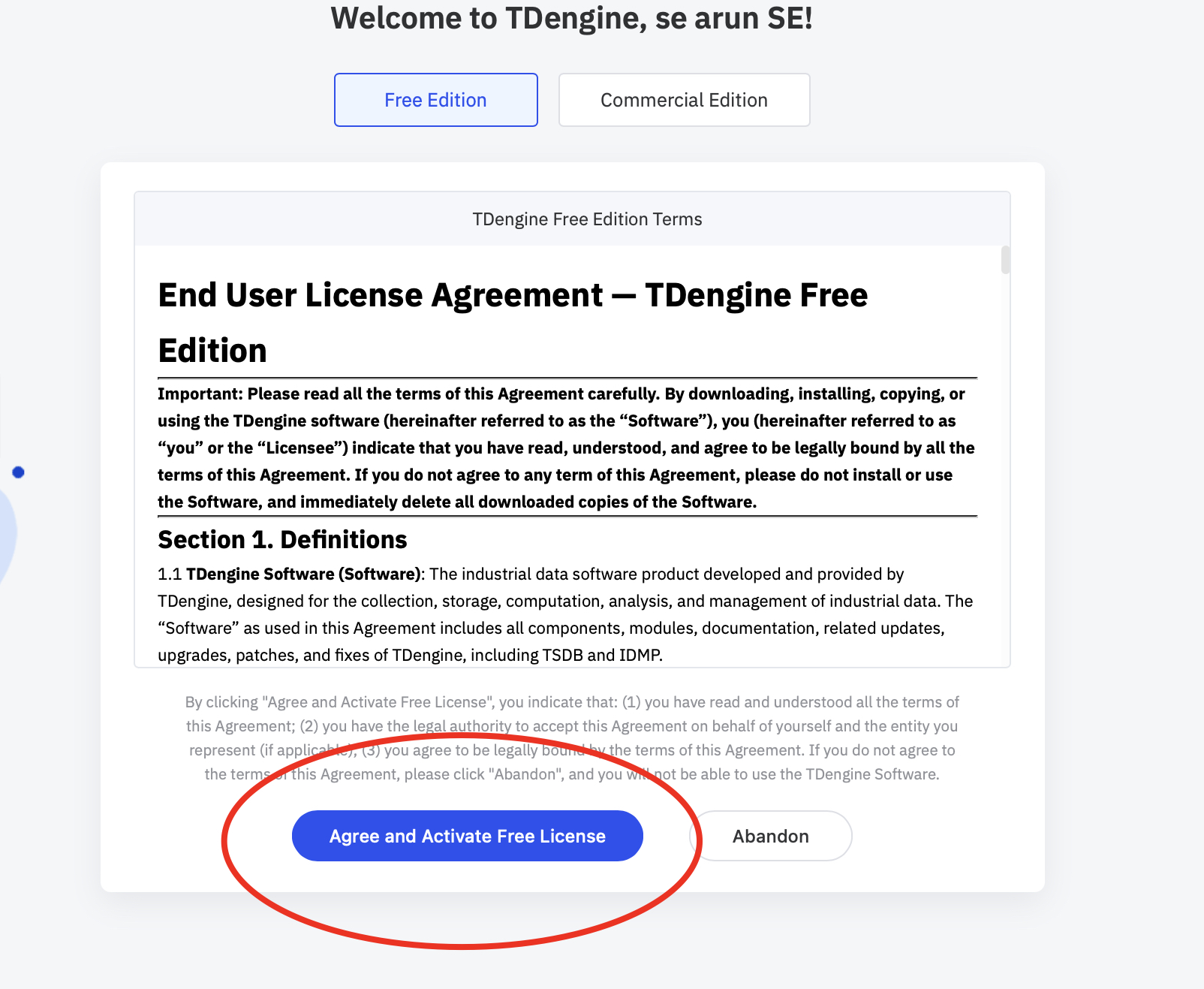
Note: If your mail server doesn't work or you lack an internet connection, please run this to retrieve your verification code:
Select-String -Path "C:\TDengine\log\tda.log" -Pattern "Generated register verify code|Generated verify code|Sending register verify code" | Select-Object -Last 1
Note: If you are connecting from another machine, replace localhost with the host name or IP address of the server where TDengine is installed.
Watch TDengine Tutorial Videos: TDengine Tutorial Videos
