14.14 Build a TDengine Demo in One Click with Natural Language
TDengine EasyUse is a "one-click" automation orchestration skill for TDengine. Users only need to describe their business scenario in natural language (for example: smart monitoring of a wastewater treatment plant), and the complete workflow of data modeling → asset catalog construction → real-time analysis rule setup → visualization panel configuration is completed automatically.
This chapter describes the core value of the skill, environment preparation, deployment steps, and a hands-on example. After completing this chapter, you will be able to reproduce a complete industry demo independently on your own machine.
| Section | Description |
|---|---|
| 14.14.1 Core Value | Pain points EasyUse solves and target users |
| 14.14.2 Environment and Prerequisites | Hardware and software requirements |
| 14.14.3 Deploy TDengine | Deploy the base environment with All-in-One in one click |
| 14.14.4 Create an API Key | Prepare credentials for MCP calls |
| 14.14.5 Edit the Login File | Provide login information required by EasyUse |
| 14.14.6 Install an AI Agent | Install an agent and choose an appropriate model |
| 14.14.7 Deploy the EasyUse Skill Package | Clone the repository into the agent's Skills directory |
| 14.14.8 Configure the MCP Server | Configure the agent to connect to the MCP server |
| 14.14.9 Generate a Demo in One Click | Generate a complete demo with one sentence |
| 14.14.10 Hands-On Example: Wastewater Treatment Plant | Details of the generated demo |
Note The examples in this chapter assume a single-machine environment, with all service addresses pointing to http://localhost:6042. If you access from another machine, replace localhost with the hostname or IP address of the deployment node.
14.14.1 Core Value
Building a demo system for an industrial internet platform traditionally involves at least four manual steps:
-
Upfront definition on the business side: The business team must first systematically sort out the application scenario, identify key monitoring objects, define the core metrics system, and clarify the scope and goals of the project;
-
Translation and mapping into technical language: The technical team must translate business requirements into data models executable by the platform, accurately mapping business semantics onto technical structures;
-
Multi-step implementation at the platform level: System construction involves multiple critical steps — configuring asset structures, connecting data collection, setting alert rules, and building monitoring dashboards — making the workload highly concentrated;
-
Repeated cross-team communication: Business and technical teams typically need multiple rounds of requirement confirmation and iterative adjustments before arriving at a deliverable system.
Even an experienced team spends days or even weeks on this entire process.
TDengine EasyUse compresses all of this work into a single sentence of natural language: customers or pre-sales engineers only need to describe the business scenario (for example "smart monitoring of a wastewater treatment plant"), and the skill automatically completes modeling, the asset tree, visualization dashboards, and real-time analysis, shortening demo delivery from "days" to "tens of minutes". For internal reporting, solution reviews, and project approval, it is entirely sufficient.
Target Users
| Role | Use Case |
|---|---|
| Customers / Trial users | Want to quickly see "what can this system do for me", skipping tedious configuration and going straight to business results |
| Pre-sales engineers | Need to quickly deliver a complete, demonstrable system from scattered customer Excel/CSV files and verbal requirements |
| Implementation consultants | Generate a demo structure in natural language before a real project starts, then fine-tune based on that structure |
14.14.2 Environment and Prerequisites
Before starting deployment, prepare the following environment:
| Category | Requirement |
|---|---|
| Operating system | Linux (recommended), macOS, or Windows + WSL |
| Permissions | root on Linux; administrator privileges on Windows (required for All-in-One deployment) |
| CPU | x64 or arm64 with AVX2 support (required by TDgpt) |
| Ports | 6042, 6030, 6038, 6055, 6060 |
14.14.3 Deploy TDengine
All EasyUse capabilities are implemented by calling TDengine IDMP backend APIs through MCP, so a reachable TDengine environment must be available first.
We recommend deploying with TDengine All-in-One; see Section 14.13.
14.14.3.1 Deployment Steps
-
Visit the TDengine download center to obtain the All-in-One installation script;
-
Run the one-click deployment command. The script automatically downloads dependency packages and installs all TDengine components on your machine;
-
After deployment completes, open the following URL in your browser:
http://localhost:6042
- Log in with the initial account and activate the product license as prompted (see Section 14.12 License Management).
Note If you do not need TDmodel, you can continue using the default deployment-single-node-no-tdmodel.yaml manifest. EasyUse itself does not depend on TDmodel.
14.14.4 Create an API Key
EasyUse calls TDengine IDMP over the MCP protocol, authenticating with a user-level API Key carried in the request header. To create one, see Section 14.8.3.
14.14.4.1 Steps
-
Log in to TDengine IDMP and click the avatar → account entry at the top in the upper-right corner;
-
Switch to the API Key tab and click Add API Key;
-
Enter a unique title (for example idmp-easyuse), then choose Never expires or specify an expiration date;
-
Click Create. A dialog pops up showing the full API Key (in the form api_xxxxxx);
-
Copy and store it immediately — the list page only shows a masked value afterwards.
Note An API Key inherits the role permissions and element access scope of its creator. If the key is later deleted or its owning user is deactivated, the API Key becomes invalid immediately. The request header format is fixed as Authorization: Bearer api_XXX — you do not need to manually prepend Bearer to the key itself.
14.14.5 Edit the Login Information File
During execution, EasyUse needs to read a plain-text login information file so that it can carry real credentials when writing to the database or creating models.
By default, open logint_info.txt in the idmp-easyuse directory and modify it according to your real user information:
TDengine IDMP:
host:     localhost
port:     6042
user:     <username>
password: <password>
api_key:  <API Key>
The fields correspond one-to-one with the TDengine IDMP login page; api_key uses the full value created in Section 14.14.4.
14.14.6 Install an AI Agent
TDengine EasyUse can run with any Skill-capable AI agent, such as Claude Code, Codex, OpenCode, WorkBuddy, etc. The agent is responsible for parsing natural language and dispatching skills to complete tasks.
This document uses OpenCode as an example:
14.14.6.1 Linux / macOS Installation
Run in a terminal:
curl -fsSL https://opencode.ai/install | bash
source ~/.bashrc         # or ~/.zshrc, depending on your shell
14.14.6.2 Windows Installation
On Windows, OpenCode officially recommends installing and using it inside WSL, to avoid path and shell compatibility issues in the native PowerShell environment. Follow the Linux procedure above within the WSL environment. If you need the native desktop version, download opencode-desktop-windows-x64.exe from the OpenCode GitHub Release page.
14.14.6.3 First Launch and Model Selection
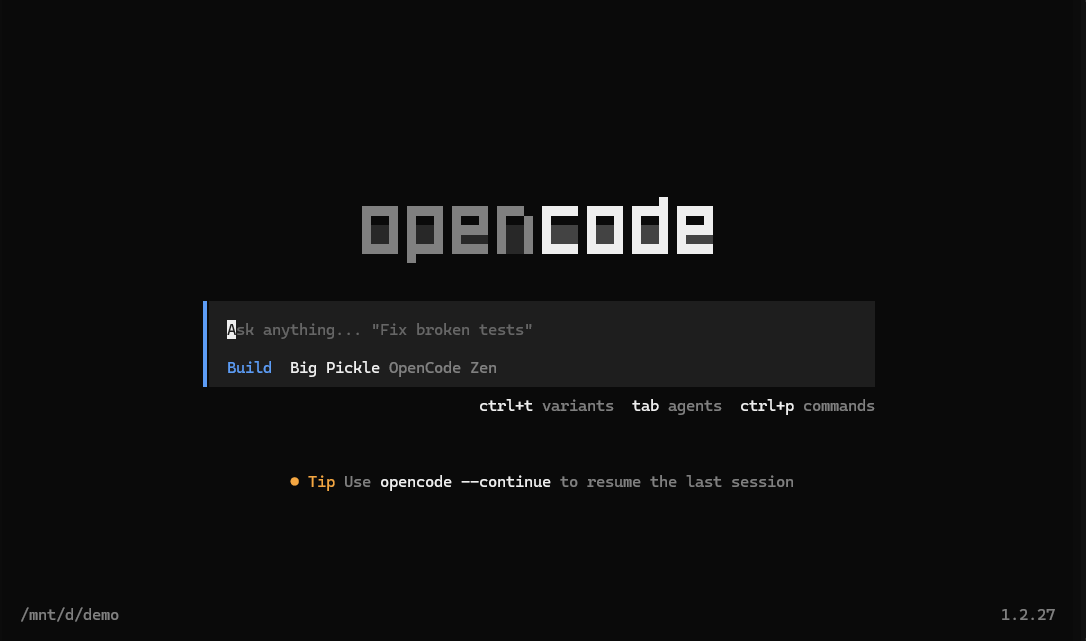
- Run in a terminal:
opencode
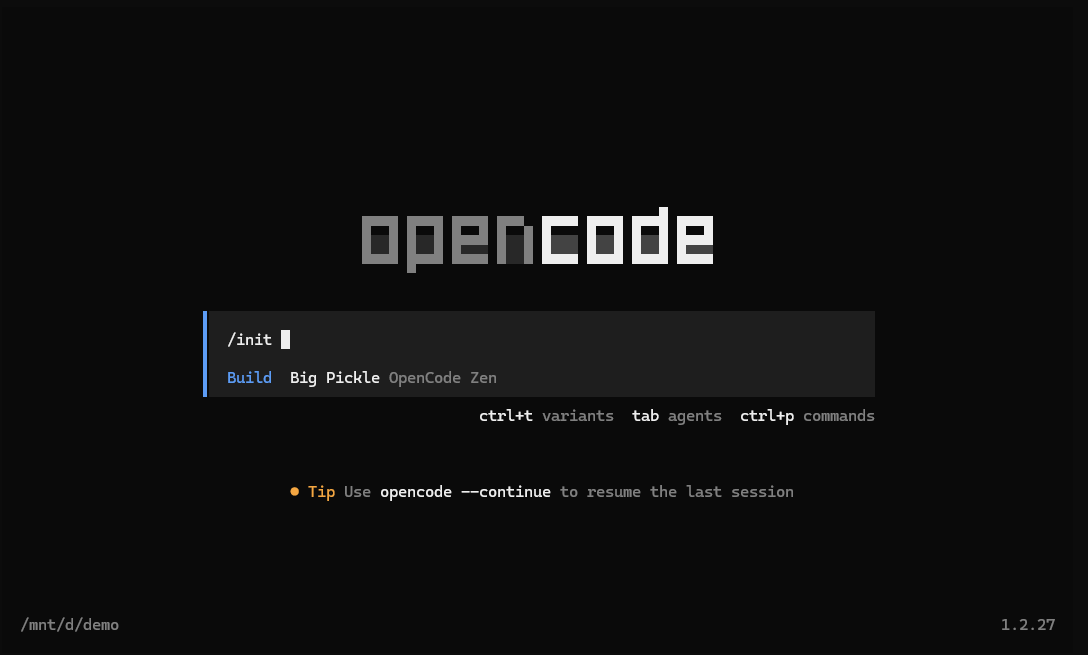
- Enter the initialization command in the OpenCode interactive interface (optional; recommended on first use):
/init
- Use /models to open the model list and select a large language model, for example:
DeepSeek V4 Flash
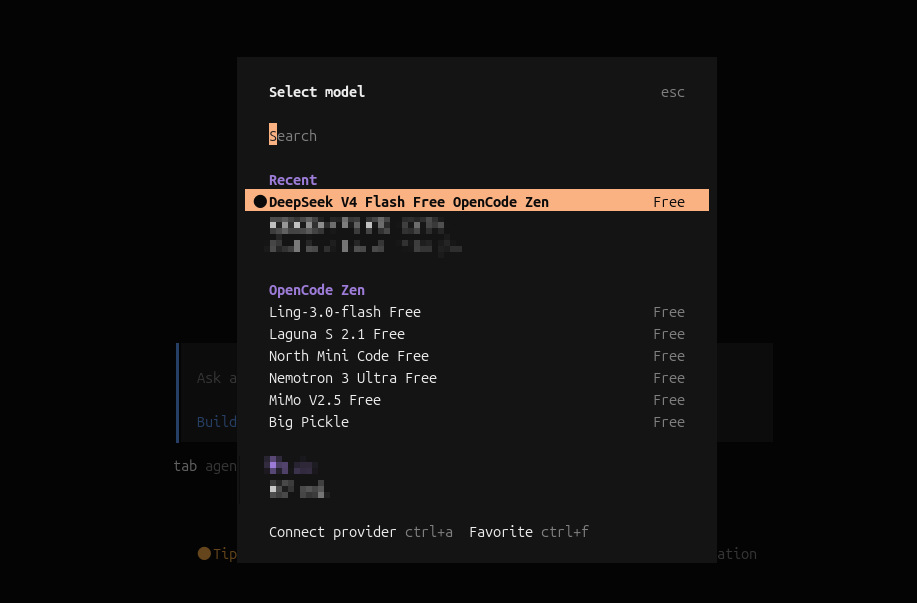
Note If the model list is empty, first configure the API Key of your model Provider in OpenCode (see the official OpenCode documentation). EasyUse is not bound to any specific model; any model supporting tool use works.
14.14.7 Deploy the EasyUse Skill Package
EasyUse consists of three skills working together. They need to be pulled from GitLab and placed into OpenCode's skill directory .opencode/.
14.14.7.1 Clone the Repository
git clone https://github.com/taosdata/agent-skills.git
cd agent-skills
14.14.7.2 Copy the Skills into OpenCode
Run in your OpenCode working directory (the directory containing a .opencode/ subdirectory):
cp -r skills/idmp-easyuse                  .opencode/
cp -r skills/idmp-sample-data-generator    .opencode/
cp -r skills/idmp-structure-exporter       .opencode/
The three skills divide the work as follows:
| Skill | Purpose |
|---|---|
| idmp-easyuse | Master orchestrator: requirement parsing → data/asset modeling → real-time analysis configuration → visualization panel configuration |
| idmp-sample-data-generator | Generates the asset catalog and simulated time-series data matching the business semantics |
| idmp-structure-exporter | Exports/reuses an already-built asset catalog structure, for migration or replication |
14.14.7.3 Verify Skill Loading
Back in the OpenCode session, run:
/skills
The list should include idmp-easyuse, idmp-sample-data-generator, and idmp-structure-exporter.
14.14.8 Configure the IDMP MCP Server
EasyUse communicates with IDMP through MCP. Edit the OpenCode configuration file ~/.config/opencode/opencode.json and add a server named idmp-mcp under the mcp section:
{
  "mcp": {
    "idmp-mcp": {
      "type": "http",
      "url": "http://localhost:6042/api/v1/mcp/stream",
      "headers": {
        "Authorization": "Bearer api_your_api_key_here"
      }
    }
  }
}
14.14.8.1 Field Description
| Field | Value |
|---|---|
| Name | idmp-mcp (conventional name expected inside the EasyUse skill; do not change it) |
| URL | http://idmp-host:6042/api/v1/mcp/stream |
| Authentication | Authorization: Bearer with the API Key created in Section 14.14.4 |
Note If IDMP is deployed on another machine, replace localhost with the corresponding hostname or IP, and make sure port 6042 is reachable from the machine running OpenCode. Restart the OpenCode session after changing the configuration for it to take effect.
14.14.9 Generate a Demo in One Click
In the OpenCode session, invoke the EasyUse skill in natural language. The basic command format is:
/idmp-easyuse <business scenario description>.
Make sure not to specify any existing database! There is a risk that the specified database gets deleted during execution.
14.14.9.1 Complete Example
/idmp-easyuse create a wastewater treatment demo.
After execution, EasyUse proceeds in sequence:
-
Parses the business requirements → generates a Requirement Baseline;
-
Builds the asset model and asset tree;
-
Generates simulated time-series data and writes it;
-
Creates real-time analyses;
-
Creates visualization panels;
-
Outputs a demo generation report listing the paths of all created objects.
Once generation completes, you can view the asset tree, panels, and alerts directly at http://localhost:6042.
14.14.10 Hands-On Example: Wastewater Treatment Plant Smart Monitoring Demo
Taking the command /idmp-easyuse create a wastewater treatment demo… as an example, EasyUse created the following objects in one pass:
Make sure not to specify any existing database! There is a risk that the specified database gets deleted during execution.
14.14.10.1 Data Modeling (wastewater_treatment database)
The database wastewater_treatment is created automatically with 7 super tables designed:
| Super Table | Collected Content |
|---|---|
| Water quality | pH, COD, ammonia nitrogen, total phosphorus, suspended solids, etc. |
| Flow | Inlet/outlet instantaneous flow, cumulative flow |
| Pumps | Running status, current, head |
| Valves | Opening degree, open/close status |
| Blowers | Rotational speed, air volume, vibration |
| Dosing | Chemical type, instantaneous/cumulative dosage |
| Energy | Active power, electricity consumption |
14.14.10.2 Asset Tree (5 functional zones, 24 nodes)
| Functional Zone | Typical Nodes |
|---|---|
| Pretreatment zone | Bar screen, grit chamber, primary sedimentation tank |
| Biochemical treatment zone | Anaerobic tank, anoxic tank, aerobic tank, secondary sedimentation tank |
| Advanced treatment zone | High-rate clarifier, sand filter, disinfection tank |
| Sludge treatment zone | Sludge thickening, dewatering machine, sludge pump |
| Auxiliary systems | Blower room, dosing room, power distribution, energy consumption |
14.14.10.3 Visualization Panels (6)
For example:
-
Aerobic tank dissolved oxygen and pH monitoring
-
Blower running status monitoring
-
Inlet vs outlet water quality comparison
-
Dosing system dosage trends
-
Sludge treatment energy consumption analysis
-
Plant-wide key metrics overview
14.14.10.4 Alert Rules (8, across three severity levels)
| Level | Example Rules |
|---|---|
| Critical | Outlet COD exceeding limit (> threshold for 5 consecutive minutes), sludge pump pressure too high |
| Major | Aerobic tank dissolved oxygen too low, abnormal blower vibration |
| Warning | Sudden inlet flow surge, dosing amount deviating from setpoint |
All alerts come automatically with expressions, thresholds, and duration parameters, and can be edited again on the IDMP alerts page.
TDengine EasyUse transforms building an industrial data platform from "days of preparation, multi-person collaboration, repeated revisions" to "on the order of 30 minutes, started with a single sentence, straight into optimization". The change it brings is no longer just an efficiency gain but a restructuring of how projects get started — for the first time, industry experts' experience can quickly become systems, become results, become verifiable starting points.
