14.11.6 Change List & Daily Operations
The change list is the core page for managing uncommitted changes. Whenever a user modifies version-controlled data, a badge in the top-right corner shows the uncommitted change count; clicking it opens the change list.
Change Badge
After modifying data, a red badge appears next to the avatar in the top-right corner, showing the number of uncommitted changes.
- The number updates in real time (via SSE push)
- Shows "99" when exceeding 99
- Click the badge to jump directly to the change list page

Change List Page
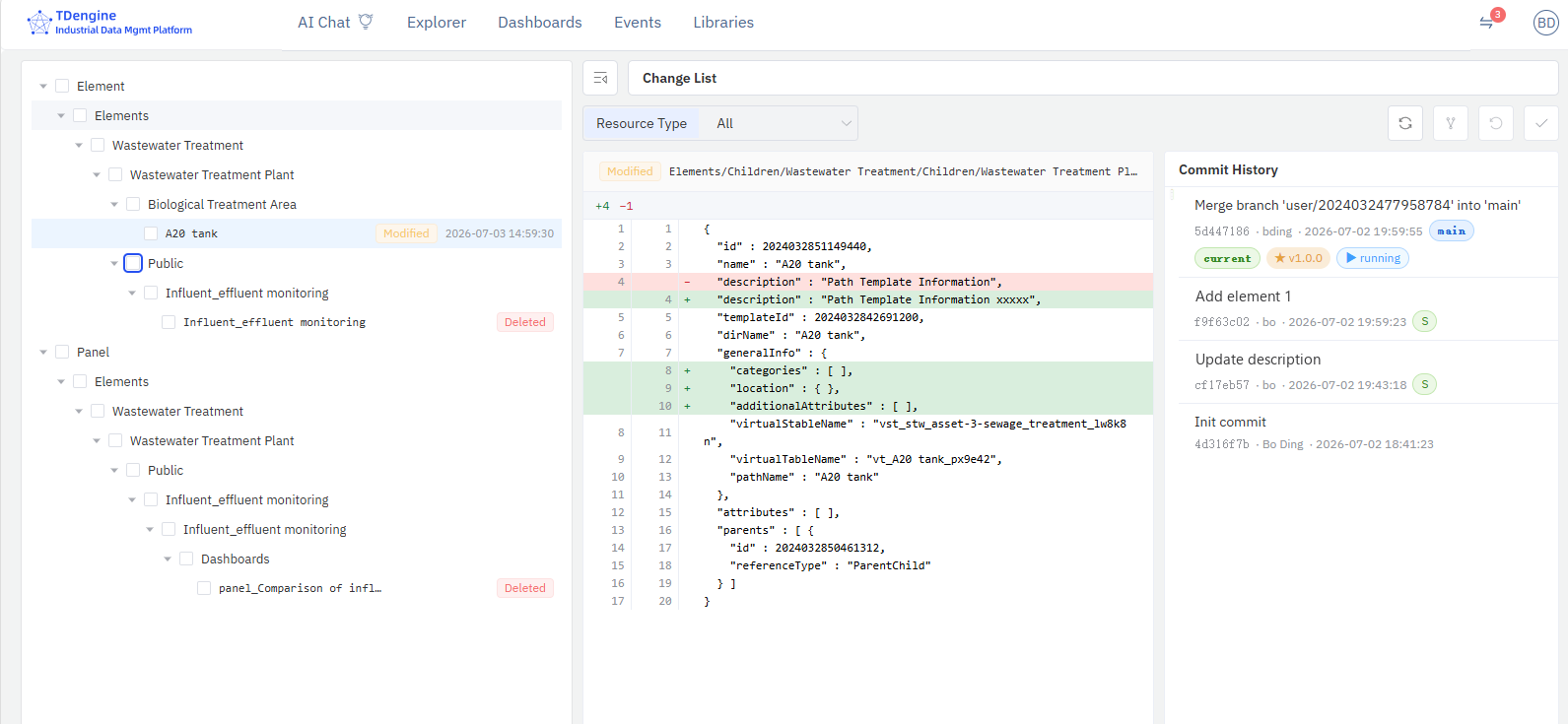
The change list page uses a three-panel layout: left change tree, center change detail panel, right commit history panel.
Left: Change Tree
The change tree groups all uncommitted changes by resource type:
- Change Types: Added, Modified, Deleted, Renamed, Untracked
- Resource Types: Elements, Element Templates, Event Templates, Dashboards, Panels, Analyses, Connections, Categories, UoM, Enumerations, etc.
- Checkboxes: Support single and select-all
- Context Menu: Each row supports individual Check-In or Undo
Top Toolbar
- Resource Type Filter: Filter changes by resource type
- Undo Button: Batch undo selected changes
- Check-In Button: Batch submit selected changes
- Sync Button (Review Required / E-Signature mode): Sync latest content from the main branch
Center: Change Detail Panel
After selecting a change, the center panel displays detailed information:
- Diff Comparison: Side-by-side comparison of HEAD version vs working tree version
- Change Details: Resource path, change type, modification time
Right: Commit History Panel
The commit history panel displays the current branch's commit history as a swimlane diagram, with each commit node annotated with badges indicating its role in the version control workflow:
| Badge | Meaning |
|---|---|
| main | HEAD of the main branch (latest commit on the public main branch) |
| current | HEAD of the current user branch (latest commit in personal workspace) |
| ★ v1.0.0 | Published version tag (published by administrator in Version Management) |
| ▶ running | Currently running version (the data version currently used by the system) |
| MR !2 | Merge Request associated with this commit; click to open in GitLab/GitHub |
| S | GPG signature badge, indicating the commit has been verified with GPG e-signature |
The swimlane diagram uses different colors to distinguish the main branch line from the user branch line, with connecting lines between nodes showing parent-child relationships.
Check-In
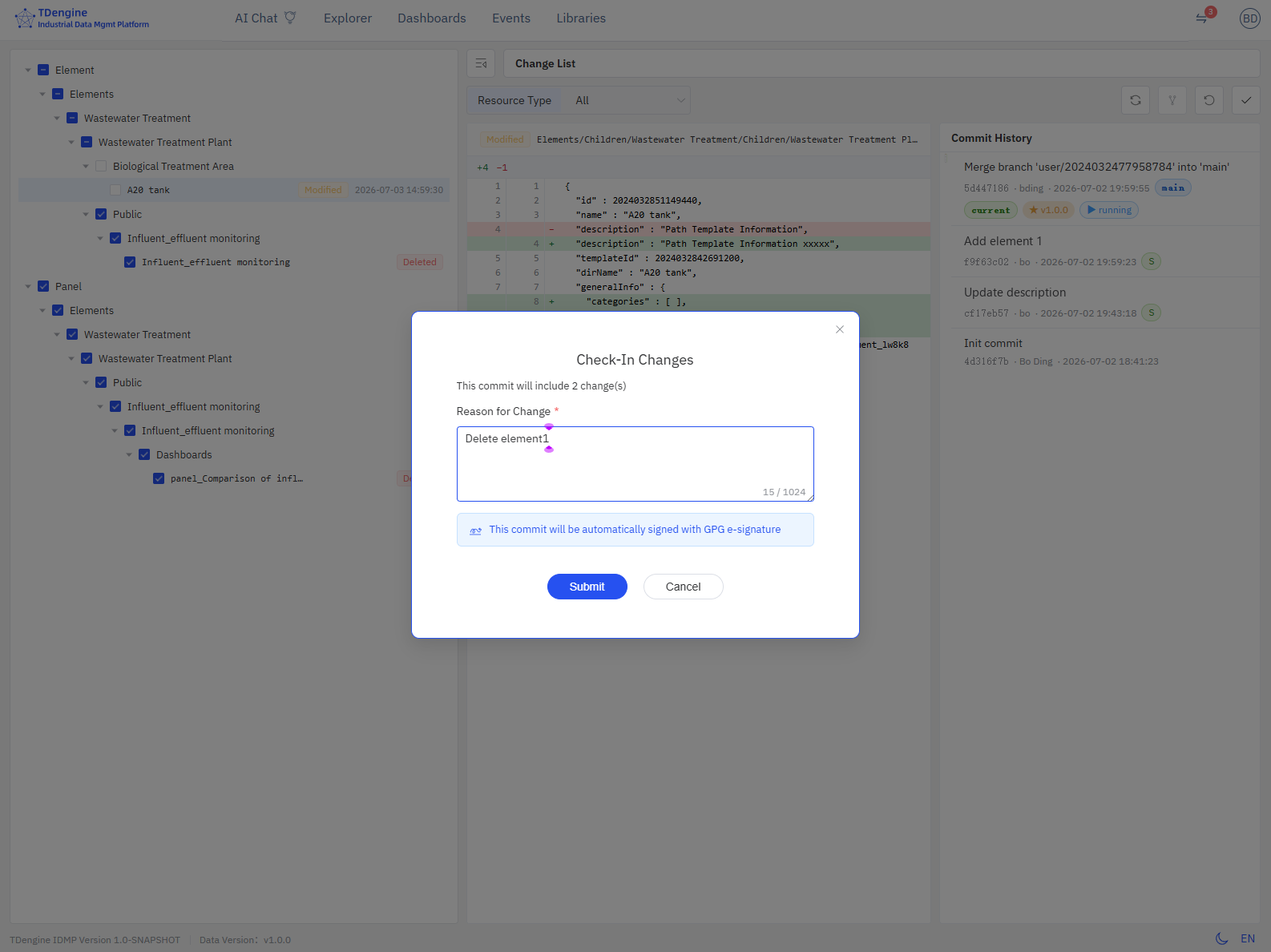
Check-In submits selected changes to the Git repository.
Steps
- Check the change rows to submit in the change list
- Click the Check-In button
- Fill in the Reason for Change (required) in the dialog
- Click Submit
Reason for Change
- The reason is required and will be used as the Git commit message
- It is also recorded in the audit log
- Write a clear business reason for future traceability
E-Signature Mode
In E-Signature mode, the check-in dialog displays the hint: "This commit will be automatically signed with GPG e-signature".
Undo
Undo restores selected changes to the previous version (HEAD).
Steps
- Check the change rows to undo in the change list
- Click the Undo button
- Confirm the undo operation
Undo is irreversible. After undoing, workspace files are restored to the HEAD version, and all uncommitted changes will be lost.
Change Type Reference
| Type | Description |
|---|---|
| Added | Newly created resource, not yet committed to Git |
| Modified | Content of an existing resource has changed |
| Deleted | Resource has been deleted but not committed |
| Untracked | New file in the workspace, not tracked by Git |
| Renamed | Resource has been renamed, showing old and new paths |
