14.11.3 Personal Workspace
In Review Required or E-Signature modes, each user has an independent Personal Workspace. The personal workspace ensures that unreviewed changes do not affect the public view and are not visible to other users.
What is a Personal Workspace?
A personal workspace is an independent Git branch automatically created by the system for each user. In review modes:
- All user changes are made on the personal branch
- Other users cannot see these changes
- Changes only become visible to everyone after passing MR/PR review and being merged
Initializing a Personal Workspace
Trigger
Personal workspaces use a lazy creation strategy: they are only triggered when a user first edits a version-controlled object.
For example, when a user performs any of the following operations, the system detects that the workspace is not initialized and automatically triggers creation:
- Creating new elements, templates, panels, etc.
- Modifying element attributes, analysis configurations, etc.
- Deleting UoM, adding categories, etc.
Initialization Process
- User clicks the "Save" or "Confirm" button
- System detects that the personal workspace is not initialized
- A confirmation dialog appears: "Current workspace not initialized. Initialize now?"
- After user confirms, a full-screen loading animation is displayed
- System creates the personal branch and copies data in the background
- After initialization completes, a "Workspace ready" notification appears in the top-right corner
- User can now save changes normally
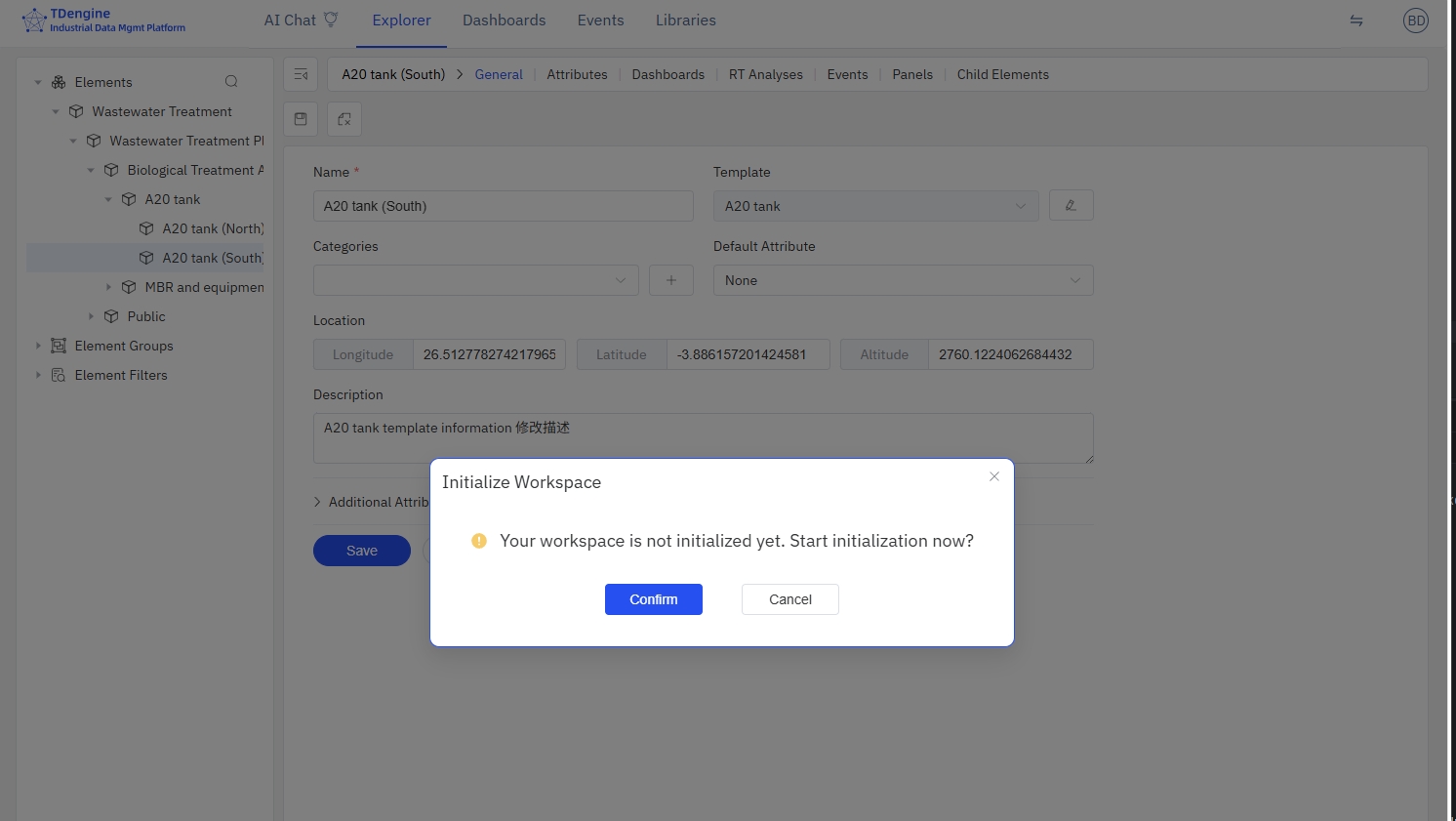
During initialization, users can continue editing forms on the page, but clicking Save will prompt "Workspace not yet ready."
Status Indicator
During initialization, a workspace status badge appears next to the avatar in the top-right corner:
- Initializing: Spinning icon + "Initializing XXs"
- Initialization Failed: Red exclamation mark + error summary; click to retry
- Ready: Badge auto-hides

Deleting a Personal Workspace
If a user needs to return to the public workspace (admin view), they can manually delete their personal workspace.
- Click the user avatar in the top-right corner
- Select Delete Personal Workspace from the dropdown menu
- Enter an audit reason to confirm
- The page automatically refreshes and returns to the public view
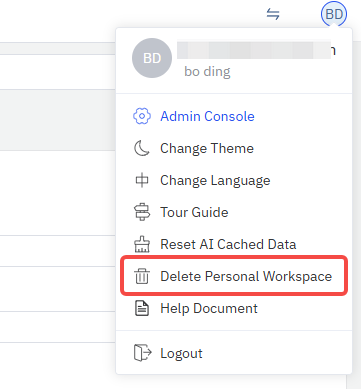
Deleting a personal workspace will lose all uncommitted changes. Make sure you have committed or no longer need these changes before deleting.
Syncing from Main
When other users' MRs/PRs are merged, your personal workspace may fall behind the main branch. The Sync button is available in the top-right corner of the change list page:
- The button shows the number of commits behind the main branch
- Click the button to merge the latest content from main into your personal workspace
- After syncing, you can see changes merged by other users
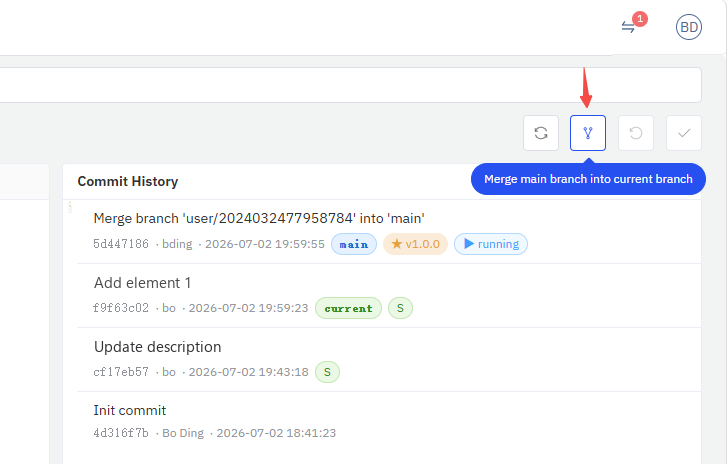
Workspace Lifecycle
User's first edit → Auto-create personal workspace → Changes made on personal branch
                                                    ↓
                                        Check-In → Submit MR/PR → Review & Merge
                                                    ↓
                                        Personal workspace retained after merge (may have uncommitted changes)
                                                    ↓
                                        User can manually delete workspace to return to public view
