14.11.4 Configuring Personal Git Token
In Review Required or E-Signature modes, each user needs to configure their own Git Personal Access Token for pushing personal branches and creating Merge Requests.
Why a Personal Token?
- The administrator-configured system service token is used for automated backend operations
- User-initiated push and MR creation require a personal token to correctly record the committer's identity in Git history
- Personal tokens ensure that each user's commits are traceable and non-repudiable
Configuration Steps
1. Generate a Personal Access Token
Create a personal access token in GitLab or GitHub (permission requirements are the same as for the administrator configuration).
2. Open Profile Settings
Click the user avatar in the top-right corner, and select the menu item with the email address from the dropdown to open the Profile Settings dialog.
3. Switch to the Git Tab
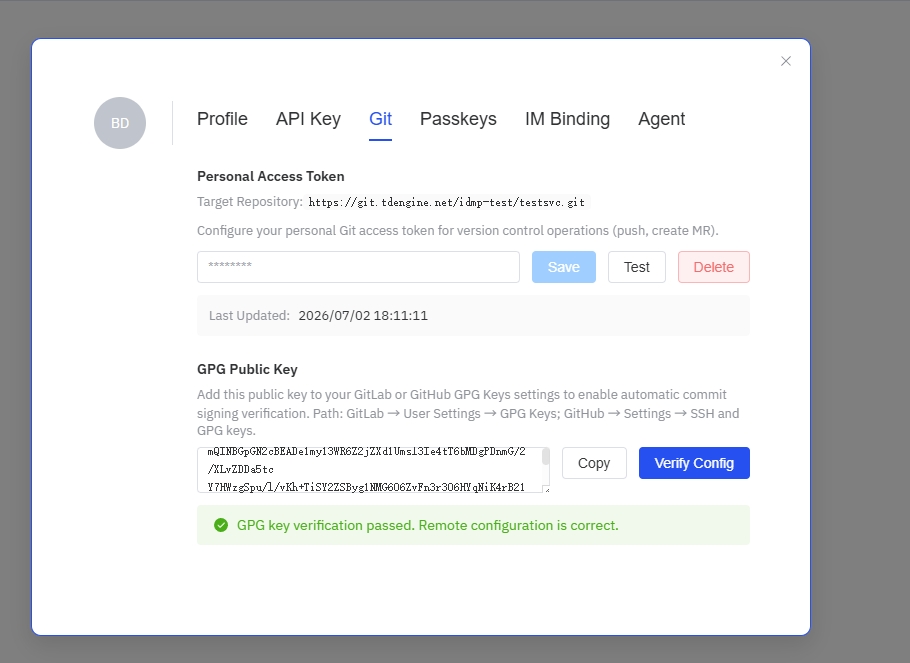
In the Profile Settings dialog, click the Git tab.
4. Enter the Token
Paste your Personal Access Token into the input field.
5. Test the Token
Click the Test button to verify the token's validity. A successful test will show "Connection successful".
6. Save
Click the Save button to complete the configuration.
GPG Public Key
In the Git tab, you can see your GPG public key information (if the administrator has generated one for you).
- Click Copy Public Key to copy the GPG public key
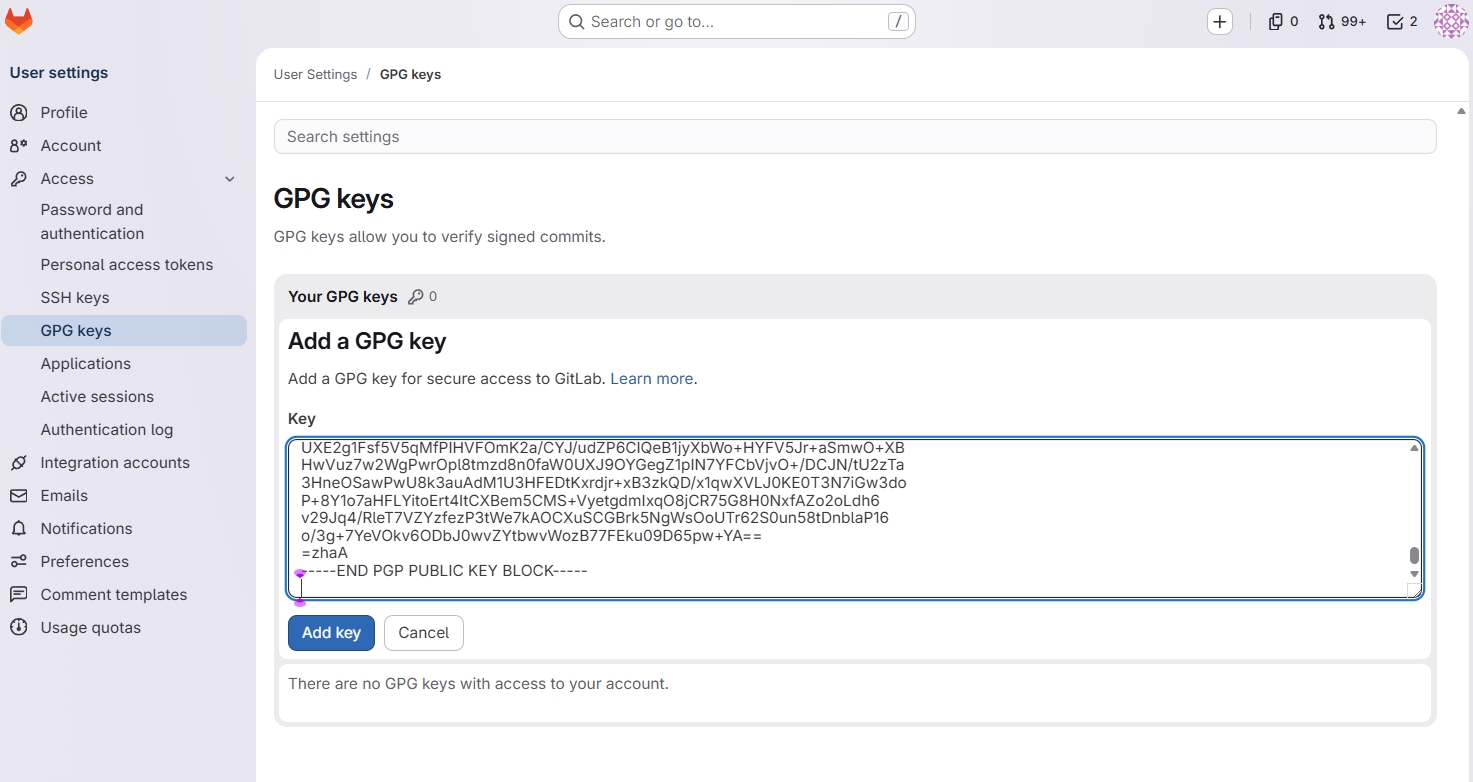
- Add the public key to GitLab/GitHub's GPG Keys settings to enable automatic signature verification for your commits
- Click Verify Configuration to check if the GPG configuration on the remote Git service is correct
GPG keys are generated by the administrator on the Management Console → Version Control → E-Signature Keys page. See GPG Key Management for details.
FAQ
Q: Can I skip configuring a personal token?
In Version Track mode, it's not needed. In Review Required / E-Signature modes, Check-In will fail without a personal token.
Q: What if the token expires?
Regenerate the token and update it in Profile Settings.
Q: What if the test connection fails?
Check that the token has sufficient permissions and has not expired.
