5.6 Toolbox
5.6.1 Pen
- Start: Left click
- Pause: Right click or enter
- End: esc
- Close/Unclose: enter
5.6.2 Pencil
- Start: Continuous left drag
- Pause: Release left button
- End: esc
- Close/Unclose: enter
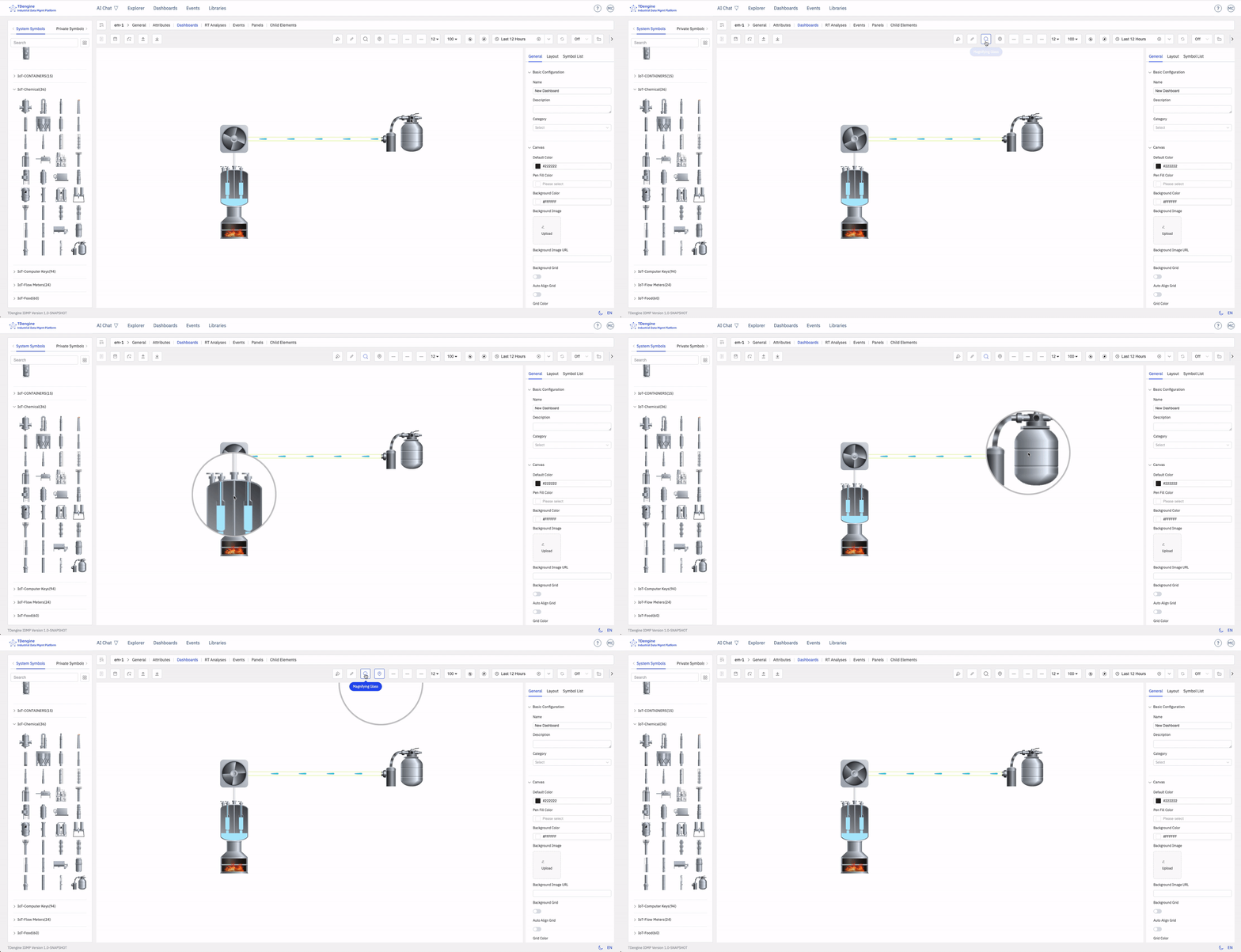
5.6.3 Magnifier
Used to observe details in the image.
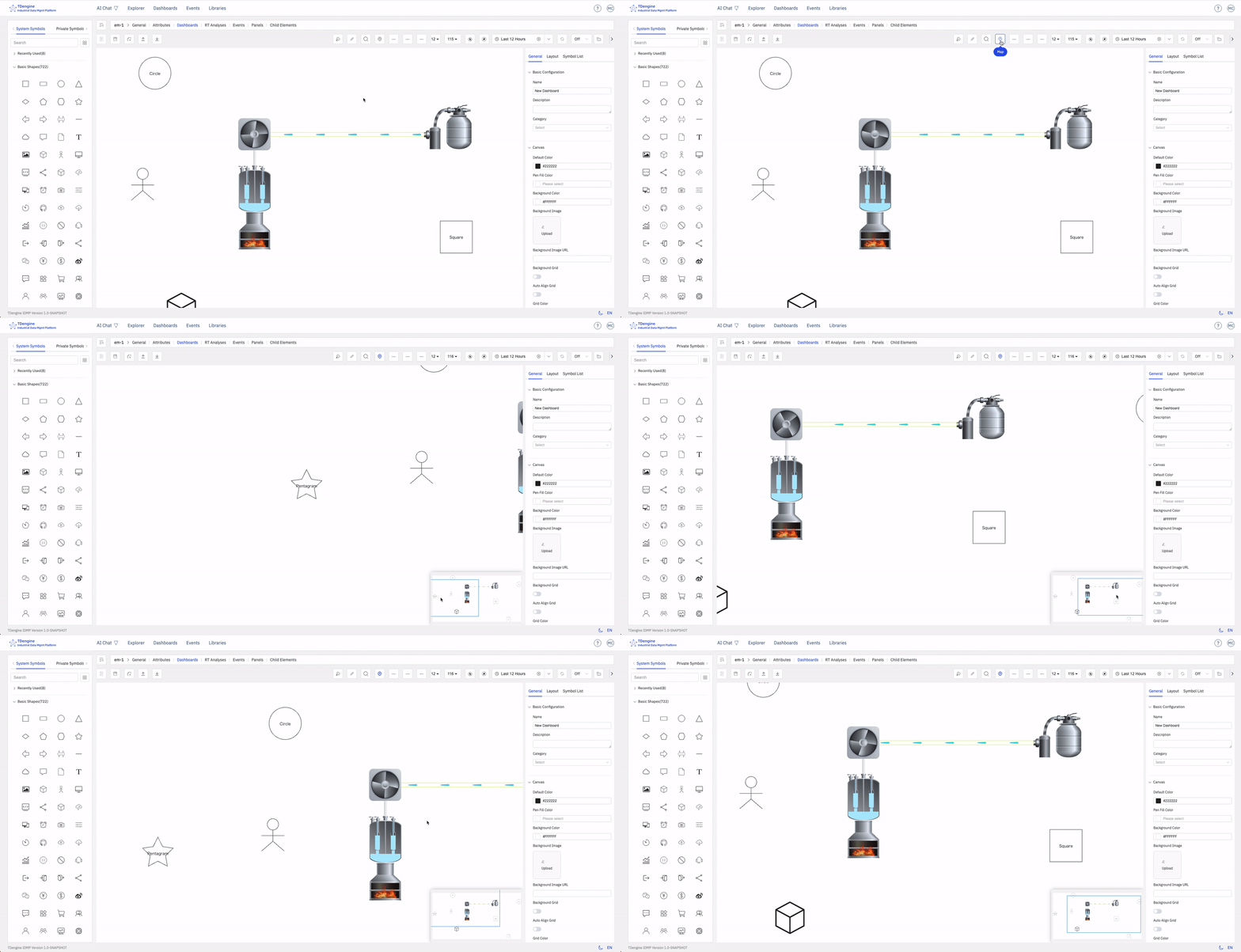
5.6.4 Overview Map (Thumbnail)
The global view of the configuration diagram. Clicking on the overview map allows you to quickly switch the center position on the canvas.
5.6.5 Line Start Arrow
Sets the arrow style for the start point of lines. Click the icon to open a dropdown with multiple arrow styles: none, triangle, diamond, circle, line down, line up, solid triangle, solid diamond, solid circle, and short line.
- The selection becomes the canvas default and is applied to newly drawn lines.
- If one or more lines are selected, their start arrow is updated at the same time.
5.6.6 Line End Arrow
Sets the arrow style for the end point of lines. The available styles are the same as the start arrow. The selection becomes the canvas default and is also applied to the currently selected lines.
5.6.7 Line Type
Sets the default line type for the canvas. Hover the icon to expand the dropdown:
- Curve: A smooth Bézier curve.
- Segment: A polyline that auto-bends.
- Line: A straight line between two points.
- Mind Map Curve: A mind-map style curve.
The selected type applies to subsequent lines drawn with the pen or pencil tools.
5.6.8 Line Width
Sets the default line width for the canvas. Hover the icon to open a number input and enter an integer greater than or equal to 1. New lines use this width by default; if any lines are selected, their width is updated as well.
5.6.9 View Scale
Displays and adjusts the zoom level of the canvas. Click the icon to open the control panel:
- Zoom out: Decrease by 10% per click.
- Zoom in: Increase by 10% per click.
- Window Size: Fit the canvas content to the current window (fitView).
- Reset: Restore to 100% and re-center the view.
5.6.10 Auto Anchor
When enabled, lines automatically snap to the nearest anchor on a target element when connecting. When disabled, you must connect to a specific anchor manually. Press Alt to toggle this state temporarily.
5.6.11 Disable Anchor
When enabled, all anchors on the canvas are hidden and lines cannot be drawn — useful for viewing or preventing accidental edits. Click again to show anchors.
5.6.12 Back to List
Returns to the canvas panel list. The button is disabled while there are unsaved changes; save or discard them first.
5.6.13 Save
Saves all changes to the current canvas panel. A thumbnail is generated during save and the canvas data is persisted to the server. The button is enabled only when there are unsaved changes.
5.6.14 Discard Changes
Discards all unsaved changes and reverts to the last saved state. The button is enabled only when there are unsaved changes.
5.6.15 Import
Imports canvas data from a local file. The format is automatically detected from the file extension. Supported formats are .json, .svg, .zip, .vsdx, and .dxf.
5.6.15.1 SVG Import
Any SVG vector graphics file can be imported as temporary elements on the canvas. Due to current parser limitations, the following scenarios are not supported:
- Complex gradients, CSS3 animations, and embedded JavaScript in SVG are not supported. Currently only single-line-diagram-style SVGs are well supported.
- SVG CSS specificity is simplified to a basic merge operation, which may differ from native browser rendering.
- Deeply nested
<tspan>elements are not supported. It is recommended to convert<text>elements into<path>data with AI tools or similar before importing. - The
<use>reuse element is not supported. - Position calculation for
<path>elements may be inaccurate, which can make individual shapes converted from<path>hard to select.
5.6.15.2 JSON Import
JSON files that conform to the meta2d.js core data structure can be imported. In particular, the pens array must follow the correct schema for the canvas to render properly.
5.6.15.3 ZIP Import
Used to import canvas data together with referenced image assets in one step:
- The archive is only scanned for JSON files. If multiple are present, only the first JSON file is used as the canvas data.
- All image files in the archive are automatically uploaded to the current user's private element folder, and the image references in the JSON are rewritten to point to the uploaded URLs.
5.6.15.4 VSDX Import
Microsoft Visio drawing files are supported. For more complex files (for example, Visio files that contain unparsable binary content or nested files), the parser and some drawing instructions have limited compatibility, so a small number of shapes may be rendered inconsistently. Theme color support is also limited and colors may not match exactly — you can manually adjust the colors after import.
5.6.15.5 DXF Import
AutoCAD Drawing Exchange Format (DXF) files are supported. While the parser library covers most CAD entities, some types (such as dimension entities and certain fill types) are not yet supported, and parsing of deeply nested BLOCK definitions still has issues.
5.6.16 Export
Exports the current canvas to a local file in one of the following formats:
- JSON: Exports the full canvas data in the meta2d.js data structure, which can be imported into another canvas panel to recreate the panel directly.
- PNG: Exports a bitmap screenshot of the canvas. The file name is the current panel name.
- SVG: Exports a vector image of the canvas. The file name is a random string.
5.6.17 Refresh
Forces a refresh of the live data on the canvas — fetches the latest data from the backend and re-renders all elements.
5.6.18 Lock
Toggles the canvas lock state, cycling through three states:
- Edit: The default state. All elements can be freely edited.
- Preview: Elements cannot be edited, but interactions such as click events and animations remain active. Useful for previewing the runtime behavior.
- Lock: Elements cannot be edited or moved; the canvas is read-only.
5.6.19 Properties Panel
Click the arrow icon on the right to show or hide the element configuration panel, expanding the visible canvas area on smaller screens.
